HARVARD STUDENTS - NEW UPDATE AVAILABLE

Your new Donna
is ready.
Let's get you setup.

Your new Donna
is ready.
Let's get you setup.

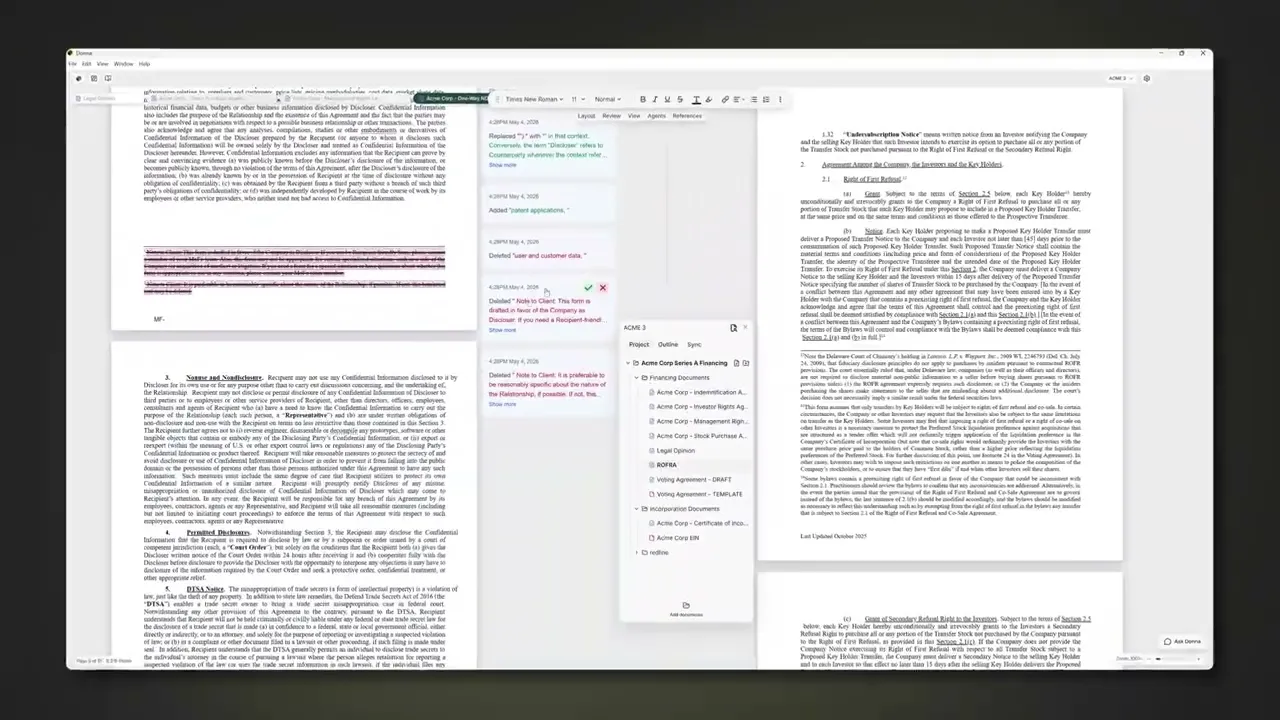
Donna has just shipped a major update. This page will walk you through everything — download the new version, set it as your default, and connect Google Drive — in under five minutes.

Donna has just shipped a major update. This page will walk you through everything — download the new version, set it as your default, and connect Google Drive — in under five minutes.

VERSION

v0.0.48

Latesr release

FORMATS

.doc

.pdf

Native support

PLATFORM

Mac

Win

Both supported

PLATFORM

Mac

Win

Both supported

SETUP TIME

3 Mins

Start to finish

v0.0.48

v0.0.48

v0.0.48

The latest version,
just released

The latest version,
just released

~3min

~3min

~3min

Average time to complete
the full setup

Average time to complete
the full setup

2os

2os

2os

Mac (Silicon + Intel)
and Windows

Mac (Silicon + Intel)
and Windows

4steps

4steps

4steps

Download · Drive · Default
· Demo. That's it.

Download · Drive · Default
· Demo. That's it.

Step 1 of 3

Set up Google Drive
for Desktop.

Set up Google Drive
for Desktop.

Set up Google Drive
for Desktop.

Donna works best when your files live in Google Drive for Desktop — this syncs

your Drive files to your local filesystem so Donna can open and link them the same

way it does any other file on your computer.

1

Step 1

Download Google Drive for Desktop

Real-Time Tracking

Download Google Drive for Desktop

Head to google.com/drive/download and download the installer for your operating system — Mac or Windows. Run the installer and follow the on-screen prompts to completion.

2

Step 2

Access Google Drive on your computer

Real-Time Tracking

Access Google Drive on your computer

Once it’s installed, your Google Drive shows up like any other storage folder (Documents, Downloads, iCloud drive, OneDrive, an external disk, etc):

  • Windows: Open File Explorer and look for Google Drive in the left sidebar (usually shown as a drive, e.g. Google Drive (G:)).

  • Mac: Open Finder and look for Google Drive under Locations in the left sidebar.

Inside, you’ll find My Drive and any Shared drives, with all your files.

3

Step 3

Keep your documents as .docx and .pdf

Real-Time Tracking

Keep your documents as .docx and .pdf

Donna works with Word (.docx), Adobe PDF (.pdf), and Excel (.xlsx) files. Any .docx, .pdf or .xlxs stored in your Google Drive is ready to open in Donna or in Google docs/sheets. (Note: Google supports and stores Microsoft file formats but doesn’t default to them, so documents created first inside Google are often Google’s file format instead of Microsoft’s. When working on Microsoft files in Google docs, there is no visual difference other than a discreet label. See Working with Google Docs below.)

4

Step 4

Open, edit, and save with Donna

Real-Time Tracking

Open, edit, and save with Donna

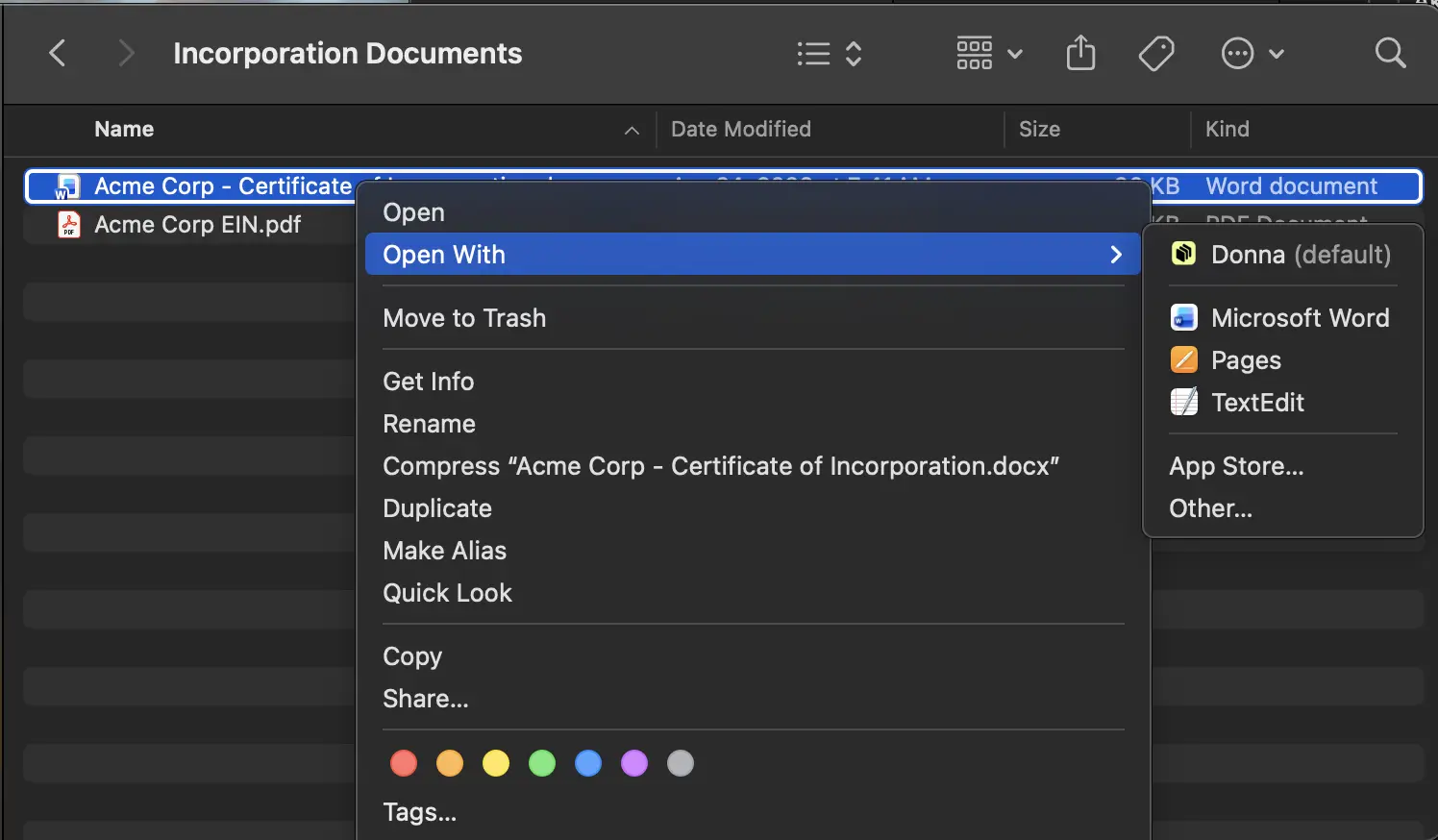
Double-click any .docx or .pdf in your Google Drive folder to open it in Donna (once Donna is your default editor — see Step 3), or right-click it and choose Open with → Donna.

  • Edit and save as usual, or turn on auto-save in Donna to match the Google Docs experience.

Tip: In Google Drive for desktop settings, choose to mirror your files to keep them available offline, handy for writing on the go without Wi-Fi.
Google Drive for desktop syncs your changes back to the cloud automatically, so your latest version is always waiting for you on every device from either Google or Donna.

Step 2 of 3

Make Donna your
default editor.

Make Donna your
default editor.

Make Donna your
default editor.

Once Donna is your default, every .docx and .pdf file you double-click — including

your Drive files — opens instantly in Donna. No more opening Word or Preview first.

METHOD A

Through File Explorer — quickest way, works on any Windows version

1

Step 1

Right-click any .docx or .pdf file in File Explorer

Find any document file on your computer. Right-click on it to open the context menu.

2

Step 2

Hover over "Open with" and select "Choose another app"

From the context menu, hover over Open with then click Choose another app from the submenu.

3

Step 3

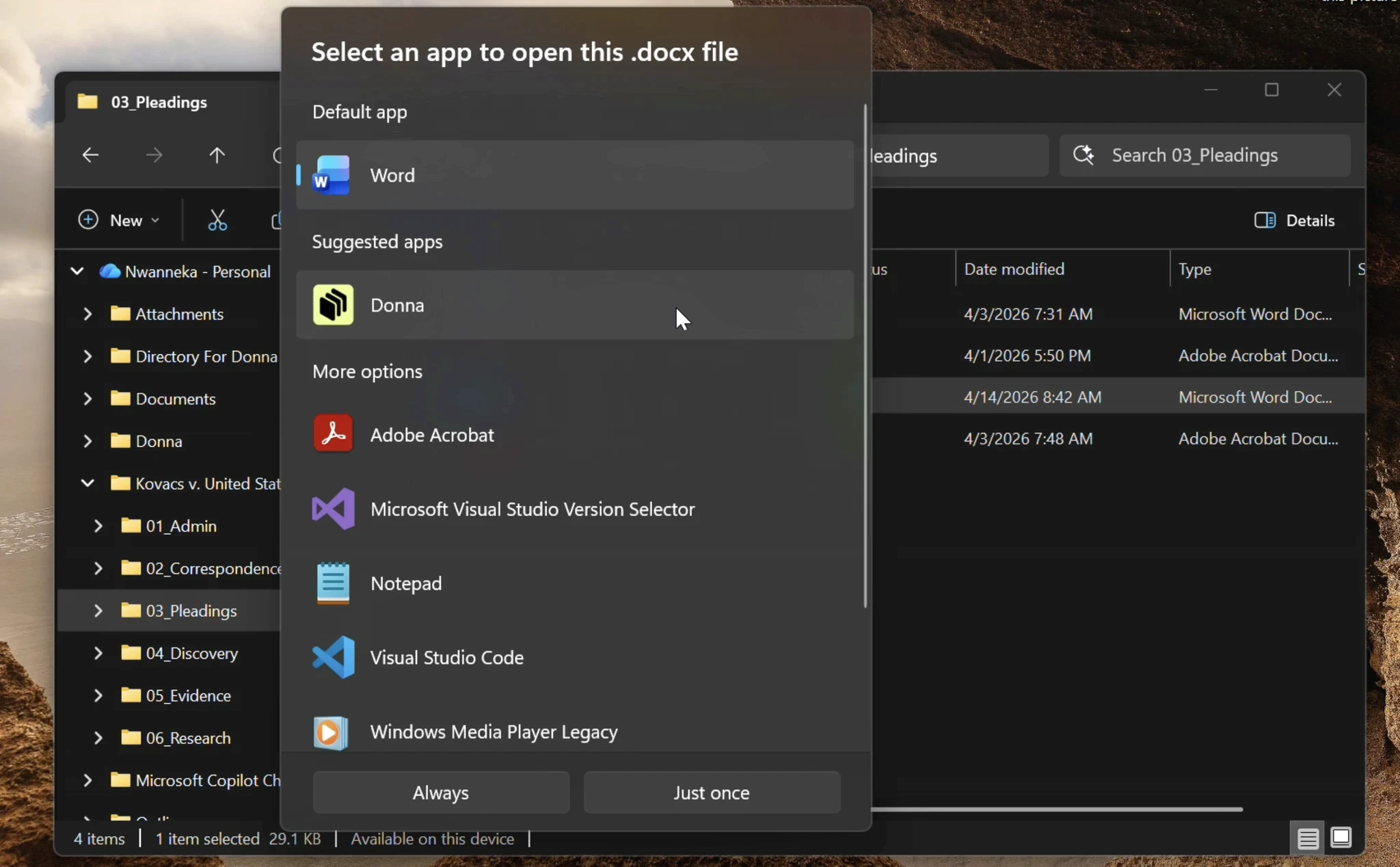
Find Donna in the list, tick "Always", click OK

Scroll through the app list until you see Donna. Check the box that says Always use this app, then click OK.

METHOD B

Through Settings — for Windows 10 and Windows 11

1

Step 1

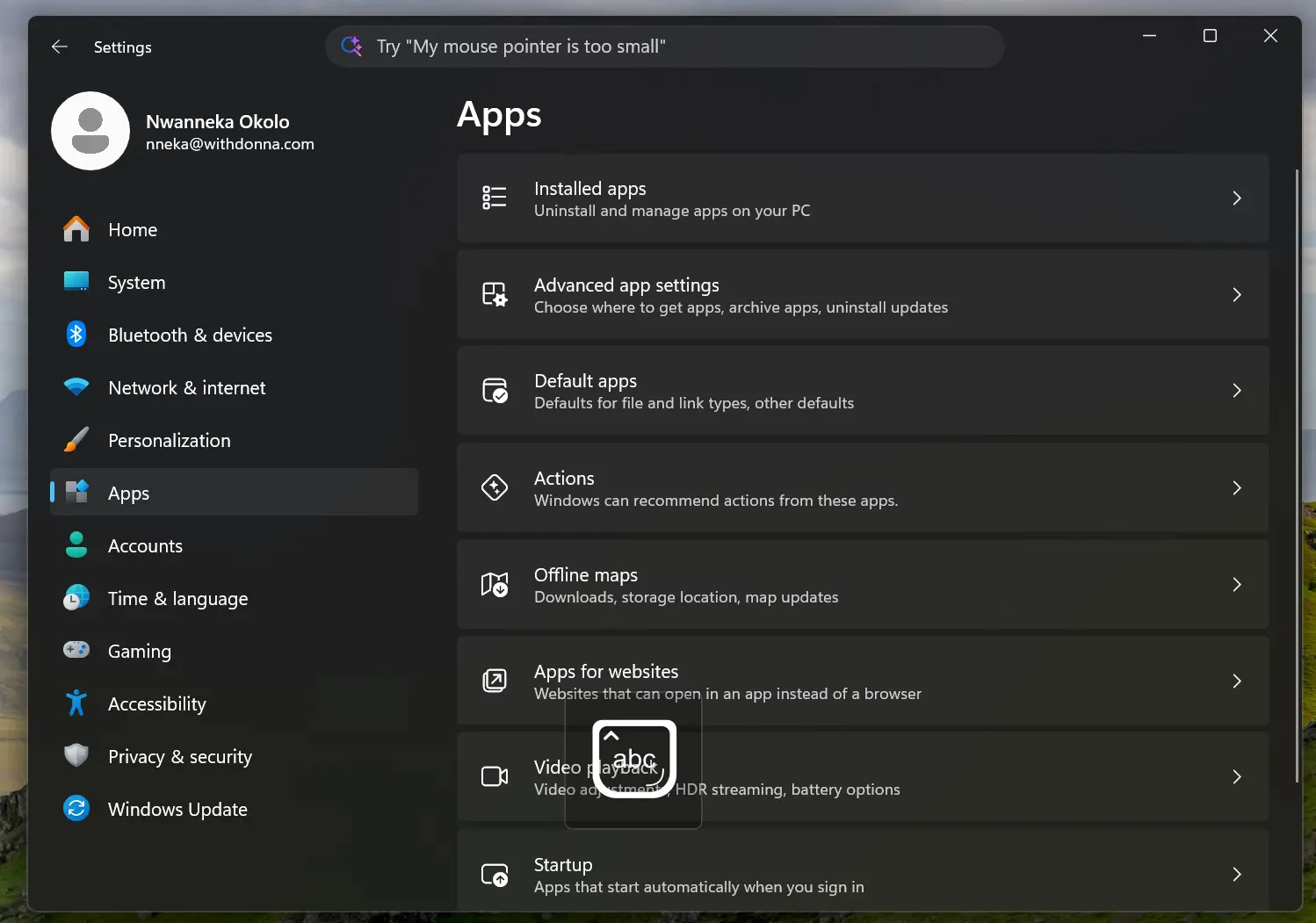
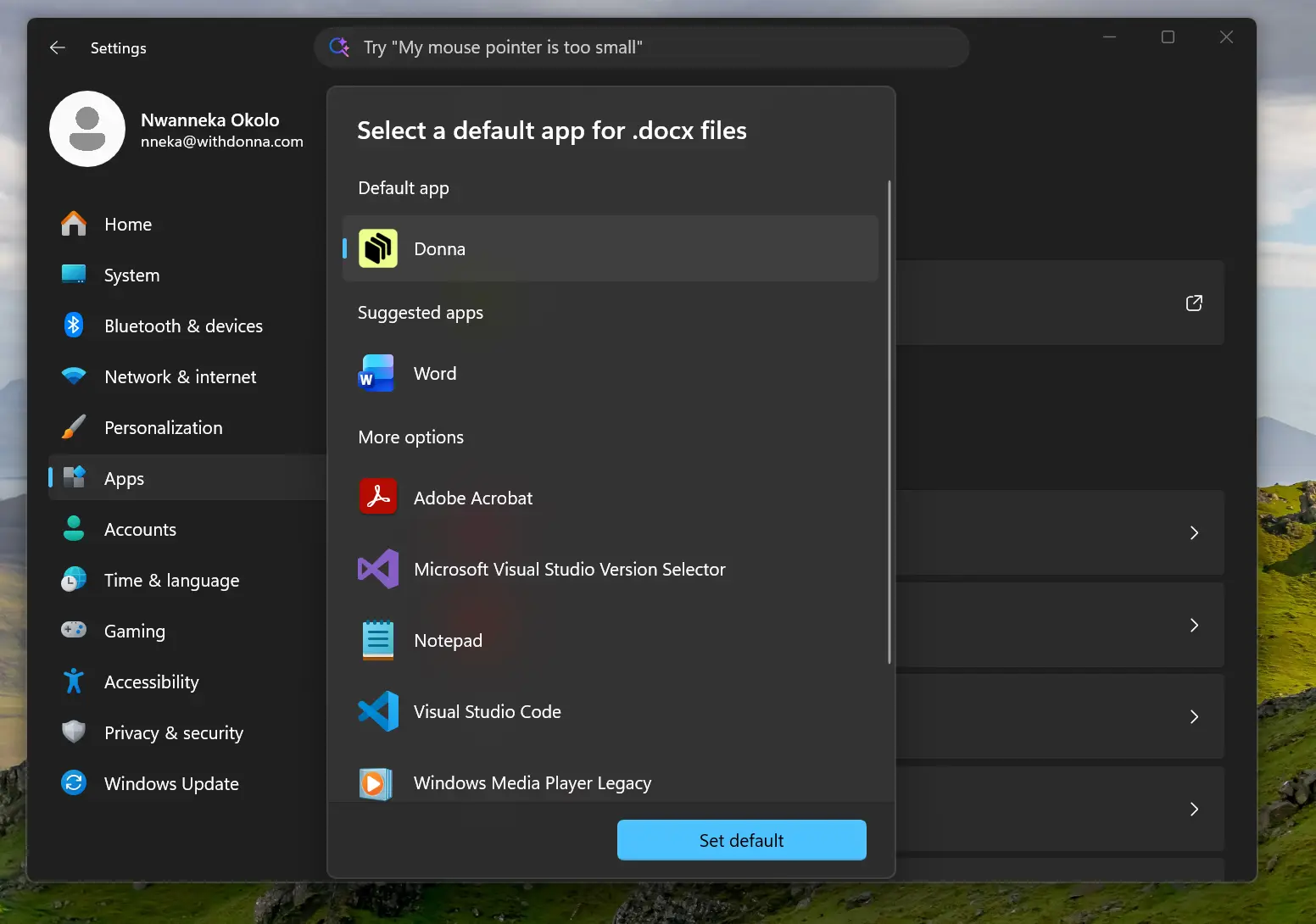
Open Settings → Apps → Default apps

Press Windows key + I to open Settings. Navigate to Apps in the left sidebar, then click Default apps.

2

Step 2

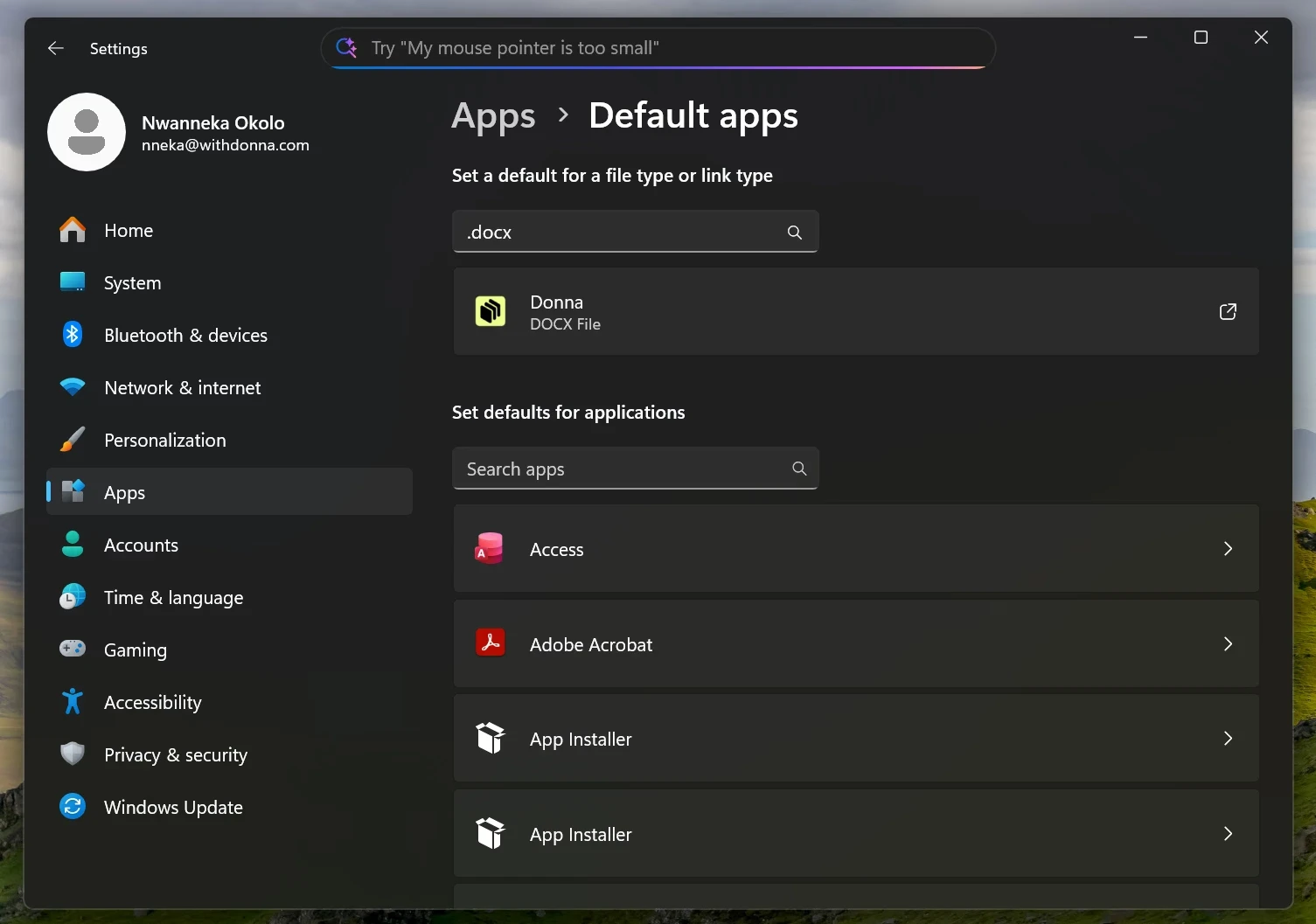
Search for .docx or .pdf and click the current default

In the search box, type .docx or .pdf. Click the current default application shown beneath the file type to change it.

3

Step 3

Choose Donna from the list and click "Set default"

Select Donna from the list of available apps and click Set default. Repeat for .pdf if needed.

METHOD A

Through File Explorer — quickest way, works on any Windows version

1

Step 1

Right-click any .docx or .pdf file in File Explorer

Find any document file on your computer. Right-click on it to open the context menu.

2

Step 2

Hover over "Open with" and select "Choose another app"

From the context menu, hover over Open with then click Choose another app from the submenu.

3

Step 3

Find Donna in the list, tick "Always", click OK

Scroll through the app list until you see Donna. Check the box that says Always use this app, then click OK.

METHOD B

Through Settings — for Windows 10 and Windows 11

1

Step 1

Open Settings → Apps → Default apps

Press Windows key + I to open Settings. Navigate to Apps in the left sidebar, then click Default apps.

2

Step 2

Search for .docx or .pdf and click the current default

In the search box, type .docx or .pdf. Click the current default application shown beneath the file type to change it.

3

Step 3

Choose Donna from the list and click "Set default"

Select Donna from the list of available apps and click Set default. Repeat for .pdf if needed.

Step 3 of 3

See exactly what's
new in this
update.

See exactly what's
new in this
update.

Our team put together a short walkthrough of everything that's changed in v0.0.48 — new features, performance improvements, and a few things you might have missed.

⚡ Faster Sessions

🔗 Improved Threads

🔍 Search Upgrades

📊 Dashboard v2

The Final Step

Download Donna
v0.0.48

Download Donna
v0.0.48

Pick your platform below. The installer is about 80MB and takes under a

minute. If you already have Donna installed, this will update it automatically.

MAC OS

MAC OS

Mac — Apple Silicon

Mac — Apple Silicon

For MacBooks with the M1, M2, M3, or

M4 chip. Not sure which you have?

Apple menu → About This Mac.


For MacBooks with the M1, M2, M3, or

M4 chip. Not sure which you have?

Apple menu → About This Mac.

Recommended for most Macs

MAC OS

MAC OS

Mac — Intel Chip

Mac — Intel Chip

For older MacBooks with an Intel processor. Check About This Mac — if it says Intel, this is your version.


For older MacBooks with an Intel

processor. Check About This Mac — if

it says Intel, this is your version.

Intel MAC

WINDOWS

WINDOWS

Windows 10 & 11

Windows 10 & 11

Compatible with Windows 10 and Windows 11. Run the .exe installer — Windows may ask for permission, click "Run anyway".

Compatible with Windows 10 and

Windows 11. Run the .exe installer

— Windows may ask for permission,

click "Run anyway".

Windows 10 & 11